
Archivi categoria: Come fare per…

SpeedTest con Powershell

SpeedTest Vorreste testare la velocità della vostra linea internet con uno script?
Fatelo con PowerShell!

Ecco come fare:

#SPEED TEST

write-host "`nScript: "
write-host "SpeedTest con PowerShell"
write-host "-----------------------------------`n"

#IMPOSTAZIONE DELLA VELOCITA' MINIMA DA TESTARE
$MinimumSpeed=50


#SALVATAGGIO ATTUALE CONFIGURAZIONE SSL/TLS
#==========================================
$cur = [System.Net.ServicePointManager]::SecurityProtocol
[System.Net.ServicePointManager]::SecurityProtocol = [System.Net.SecurityProtocolType]::Tls12

#DOWNLOAD OOKLA ZIP
#==================
$OoklaWebPage=invoke-webrequest "https://www.speedtest.net/apps/cli" -UseBasicParsing | Select-Object -Property RawContent 
$OoklaWebPageRows=$OoklaWebPage -split "<"
$URL=((($OoklaWebPageRows | Select-String "win64") -split " " | Select-String "href") -split "`"")[1]
$output = "$env:TEMP\speedtest.zip"
$TempFileName = "$env:TEMP\speedtest.exe"
$FileName = "$env:SYSTEMROOT\SYSTEM32\speedtest.exe"
#Download last version zip file
Invoke-WebRequest -Uri $URL -OutFile $output -Headers @{"Cache-Control"="no-cache"}
#Expand the zip file
Expand-Archive -Path $output -DestinationPath "$env:TEMP\" -Force 


#Installa o aggiorna lo SpeedTest di Ookla 
write-host "`nSPEEDTEST.EXE CHECK INSTALLAZIONE"
write-host "---------------------------------"

if ((Test-Path $FileName)) {
    write-host -nonewline "SpeedTest already installed "
    $PrecVersion=(cmd /c $FileName -V | select-string "Ookla") -replace "`n", ""
    $LastVersion=(cmd /c $TempFileName -V | select-string "Ookla") -replace "`n", ""
        if ($PrecVersion -ne $LastVersion) {
            write-host "but a new version is available on Ookla website."
            write-host -nonewline "Installed version of Ookla Speedtest:"
            $PrecVersion
            Move-Item $TempFileName $FileName -force
            write-host "Ookla version updated to latest version: $LastVersion"
        } else {
            write-host "with same version available on Ookla website."
            write-host -nonewline "Installed version:"
            $PrecVersion
        }
} else {
    write-host "SpeedTest not retrieved. Install it..."
    Move-Item $TempFileName $FileName -force
    write-host -nonewline "Installed latest version of Ookla Speedtest:"
    (cmd /c $FileName -V | select-string "Ookla") -replace "`n", ""
}

#Esegue lo SpeedTest ed assegna il valore a un oggetto
$Speedtest = speedtest.exe -p no --format=json --accept-license --accept-gdpr | ConvertFrom-Json
#$Speedtest = Start-Process -FilePath "$env:SYSTEMROOT\SYSTEM32\speedtest.exe" -verb runas -ArgumentList {-p no --format=json --accept-license --accept-gdpr}| ConvertFrom-Json
write-host "`nDATI DA SPEEDTEST"
write-host "-------------------------------------"
$Speedtest
write-host "-------------------------------------"
 
[PSCustomObject]$SpeedObject = [ordered]@{
    Download_speed = [Math]::Round(($Speedtest.download.bandwidth/1000000) * 8, 0)
    Upload_speed   = [math]::Round($Speedtest.upload.bandwidth / 1000000 * 8, 1)
    Packet_loss    = [math]::Round($Speedtest.packetLoss)
    Latency       = [math]::Round($Speedtest.ping.latency)
    #ISP           = $Speedtest.isp
    External_IP    = $Speedtest.interface.externalIp
    Internal_IP    = $Speedtest.interface.internalIp
    #Used_Server    = $Speedtest.server.host
    #URL           = $Speedtest.result.url
    Jitter        = [math]::Round($Speedtest.ping.jitter)
    Timestamp = get-date -date ([DateTime]::Now) -Format g
}


#Test if a speed is too much slow
if (($SpeedObject.Download_speed -lt $MinimumSpeed) -and ($SpeedObject.Internal_IP)) {
    $Data= foreach ($val in $SpeedObject.Keys) {"$val=$($SpeedObject.Item($val))`n"}
    write-host "`nVELOCITA' BASSA"
    write-host "-------------------------------------"
    write-host "Riscontrata velocità internet troppo bassa (< $MinimumSpeed Mbps) su $env:COMPUTERNAME`n`n$Data"
    write-host "-------------------------------------"
}
    
    #SALVATAGGIO ATTUALE CONFIGURAZIONE SSL/TLS
    #==========================================
        $cur = [System.Net.ServicePointManager]::SecurityProtocol
        [System.Net.ServicePointManager]::SecurityProtocol = [System.Net.SecurityProtocolType]::Tls12

Si otterrà questo risultato:

SPEEDTEST.EXE CHECK INSTALLATION
--------------------------------
SpeedTest already installed with same version available on Ookla website.
Installed version:Speedtest by Ookla 1.2.0.84 (ea6b6773cf) Windows  AMD64

RAW DATA FROM SPEEDTEST
-------------------------------------


type       : result
timestamp  : 2024-09-08T08:40:19Z
ping       : @{jitter=1,500; latency=8,529; low=6,549; high=9,617}
download   : @{bandwidth=4713145; bytes=68382740; elapsed=15018; latency=}
upload     : @{bandwidth=51430; bytes=864340; elapsed=15003; latency=}
packetLoss : 0
isp        : Convergenze
interface  : @{internalIp=172.16.16.3; name=; macAddr=00:1C:42:2A:0D:8F; isVpn=False; externalIp=185.105.212.180}
server     : @{id=55285; host=speedtest2.convergenze.it; port=8080; name=Convergenze S.P.A S.B; location=Capaccio Paestum; country=Italy; ip=89.21.196.252}
result     : @{id=c017d084-b6c2-45ae-85b8-58af9cd6e5b2; url=https://www.speedtest.net/result/c/c017d084-b6c2-45ae-85b8-58af9cd6e5b2; persisted=True}

-------------------------------------

VELOCITA' BASSA
-------------------------------------
Riscontrata velocità internet troppo bassa (< 50 Mbps) su PARALLELS-PC

Download_speed=38
 Upload_speed=0.4
 Packet_loss=0
 Latency=9
 External_IP=185.105.12.180
 Internal_IP=172.16.16.3
 Jitter=2
 Timestamp=08/09/2024 10:40

-------------------------------------


	

Riavvio pianificato rapido

scheduleVorreste programmare un riavvio rapidamente?

Usate un batch di Windows!

Ecco come fare:

per programmare un riavvio una tantum del computer aprite il blocco note ed incollate il contenuto seguente in un file schedula.bat.

Lanciate il file, impostate l’ora ed il gioco è fatto!

Potrete poi rilanciare il batch ogni volta che avrete bisogno di un riavvio programmato.

@echo off
SETLOCAL
SET /P RestartHour=Inserire ora del riavvio (es.04 per le 4 di mattina) includendo lo zero se necessario 


SET /a TEST=%RESTARTHOUR%

IF "%TEST%"=="-1" (
schtasks /query /tn ScheduledRestart >NUL 2>&1 && schtasks /Delete /tn ScheduledRestart /F || echo "Nessuna schedulazione presente" 
exit /b
)

IF %TEST% GEQ 24 (
    echo ORARIO NON AMMESSO!
    exit /b
)
SET NOWTIME=%TIME:~0,2%%TIME:~3,2%
SET SCHTIME=%RestartHour%00
SET today=%date%

CALL:DateToJDN %today% todayNo
SET /a tomorrowNo=todayNo+1

CALL:JDNToDate %tomorrowNo% tomorrow

IF %NOWTIME% GEQ %SCHTIME% (
    echo Schedulato riavvio domani alle %SCHTIME:~0,2%:00
    set SCHDAY=%TOMORROW:~0,2%/%TOMORROW:~3,2%/%TOMORROW:~6,4%
) ELSE (
    echo Schedulato riavvio oggi alle %SCHTIME:~0,2%:00
    set SCHDAY=%DATE:~0,2%/%DATE:~3,2%/%DATE:~6,4%
)    
schtasks /create /f /tn ScheduledRestart /tr "shutdown /r /t 120 /c """Reboot from RMM""" /f" /sc minute /mo 1 /st %RestartHour%:00:00 /et %RestartHour%:02:00 /z /SD %SCHDAY%  /RL HIGHEST /RU SYSTEM >NUL
echo.
echo.
echo SCHEDULAZIONI:
schtasks | findstr ScheduledRestart
echo.
echo.
echo RICORDA:
echo Per cancellare questa schedulazione lanciare lo script inserendo come orario -1 
echo Per vedere le schedulazioni lanciare il comando: schtasks | findstr ScheduledRestart

GOTO:EOF

:::::Converte la data in numero

:DateToJDN dd.mm.yyyy jdn=
setlocal
set date=%1
set /A yy=%date:~-4%, mm=1%date:~-7,2% %% 100, dd=1%date:~-10,2% %% 100
set /A a=mm-14, jdn=(1461*(yy+4800+a/12))/4+(367*(mm-2-12*(a/12)))/12-(3*((yy+4900+a/12)/100))/4+dd-32075
endlocal & set %2=%jdn%
exit /B

:::::Converte il numero in data

:JDNToDate jdn dd.mm.yyyy=
setlocal
set /A l=%1+68569,n=(4*l)/146097,l=l-(146097*n+3)/4,i=(4000*(l+1))/1461001,l=l-(1461*i)/4+31,j=(80*l)/2447,dd=l-(2447*j)/80,l=j/11,mm=j+2-(12*l),yy=100*(n-49)+i+l
if %dd% lss 10 set dd=0%dd%
if %mm% lss 10 set mm=0%mm%
endlocal & set %2=%dd%.%mm%.%yy%
exit /B

endlocal

.

.

.

.

.

.

.

.

.

.

.

Script per creare connessione VPN L2TP

VPN-L2TP Perdete troppo tempo a creare una connessione VPN L2TP per un vostro utente?  

Create uno script con Powerhell!

Ecco come fare:

Create uno script con powershell con i parametri indicati nelle prime righe e lanciatelo. Sarà aggiunta alle connessioni VPN dell’utente loggato una nuova voce. Inoltre sul desktop dell’utente sarà creato un documento temporaneo txt contenente username/password della connessione che l’utente potrà salvare in altro modo per poi cancellare il file.

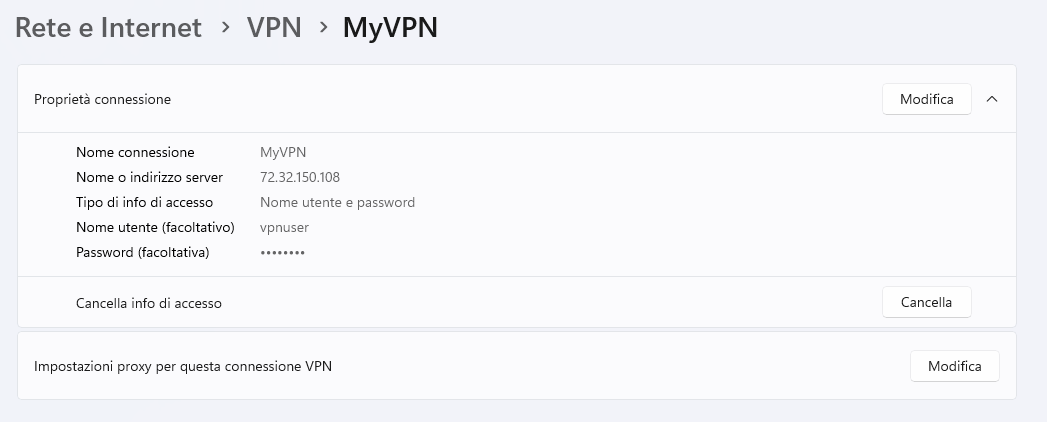
Questa la connessione creata:

MyVPN

E questo lo script:

$ActionType="add" #add, remove, ?
$VPNname="My VPN"
$VPNserverIP="72.32.150.108"
$VPNusername="vpnuser"
$VPNpassword="VPNpass!"
$L2TPpsk="PsK-PaSsWoRd*!"
$NetworkIPandSubnet="192.168.10.0/24"


function ShowInputParameters {
write-host "+--------------- PARAMETERS -----------------+"
write-host  "| Action=$ActionType"(" "*(40-("Action").length-$ActionType.Length))"|"
write-host  "| Name=$VPNname"(" "*(40-("Name").length-$VPNname.Length))"|"
write-host  "| Server=$VPNserverIP"(" "*(40-("Server").length-$VPNserverIP.Length))"|"
write-host  "| Username=$VPNusername"(" "*(40-("Username").length-$VPNusername.Length))"|"
write-host  "| Password=$VPNpassword"(" "*(40-("Password").length-$VPNpassword.Length))"|"
write-host  "| PSK=$L2TPpsk"(" "*(40-("PSK").length-$L2TPpsk.Length))"|"
write-host  "| Network and Subnet=$NetworkIPandSubnet"(" "*(40-("Network and Subnet").length-$NetworkIPandSubnet.Length))"|"
write-host "+--------------------------------------------+"
Write-Host  "`n"
}


function ShowCurrentConfigOld {}
function ShowCurrentConfig {
write-host "`n`n### CURRENT CONFIGURATION ###"
Get-VpnConnection | Select-Object Name,ServerAddress,ConnectionStatus,SplitTunneling,AuthenticationMethod | Sort-Object Name | ft -AutoSize
write-host "`n"
}

    Switch ($ActionType)
    {
    "?" {
                write-host "HELP: Choose [add|remove|?] as ActionType`n"
                write-host "Example add:`n`t*VPN_name`t`t=`tMyVPN`n`t*VPN_server...`t=`t29.55.32.224`n`t*username`t`t=`tvpnuser`n`t*password`t`t=`tmypassword`n`t*Preshared_key`t=`tThePreSHAredKey1!`n`t*Network_and...`t=`t192.168.10.0/24`n`n"
                write-host "Example remove:`n`t*VPN_name`t`t=`tMyVPN`n`t VPN_server...`t=`tx`n`t username`t`t=`tx`n`t password`t`t=`tx`n`t Preshared_key`t=`tx`n`t*Network_and...`t=`t192.168.10.0/24`n`n`t* = mandatory`n"
                ShowCurrentConfig
                exit
                }
    "add" {
            ShowInputParameters
            ShowCurrentConfig
            ## Test if VPNcredentialsHelper module is present
            if (!(get-installedmodule VPNcredentialsHelper -ErrorAction SilentlyContinue)) {install-module VPNcredentialsHelper -Scope CurrentUser -Force -ErrorAction SilentlyContinue}
            ## Test if VPN connection exist
            if (Get-VpnConnection $VPNname -ErrorAction SilentlyContinue) {write-host "### ADDING NEW VPN ###`n`tError: the VPN `"$VPNname`" already exist";exit}
            try {
                write-host "`n### ADD NEW VPN ###"
                write-host "`tAdding new VPN connection $VPNname ..."
                Add-VpnConnection -Name $VPNname -ServerAddress $VPNserverIP -PassThru -TunnelType L2tp -L2tpPsk $L2TPpsk -AuthenticationMethod MSChapv2 -SplitTunneling -RememberCredential -Force -ErrorVariable $ErroreAddVPN | out-null
                write-host "`t>VPN added"
                write-host "`tAdding username/password for connection $VPNname ..."
                $resultaddcredential=Set-VpnConnectionUsernamePassword -connectionname $VPNname -username $VPNusername -password $VPNpassword
                if ($resultaddcredential) {
                    write-host "`t>added credential for user $VPNusername"
                    $DesktopLocation=(Get-ItemProperty -Path 'HKCU:\Software\Microsoft\Windows\CurrentVersion\Explorer\User Shell Folders').Desktop
                    $CredentialFilePath=$DesktopLocation+"\credenziali VPN "+$VPNname+".txt"
                    ("Username=$VPNusername","Password=$VPNpassword") | Out-File $CredentialFilePath -Force
                    } else {
                    write-host "`t>Cannot add credential for user $VPNusername"
                    }
                } 
            catch {if ($ErroreAddVPN) {write-host "`tERROR: "; write-host "`t------";write-host -nonewline "`t";$ErroreAddVPN}}
            finally { write-host "### END NEW VPN ###`n"}   
                     
            try {
                write-host "`n### ADD NEW ROUTE ###"
                write-host "`tAdding new route to $NetworkIP to connection $VPNname ..."
                Add-VpnConnectionRoute -ConnectionName $VPNname -DestinationPrefix $NetworkIPandSubnet –PassThru -ErrorVariable ErroreRoute | Out-Null
                write-host "`t>Route $NetworkIPandSubnet added"
            } 
            catch {if ($ErroreRoute) {write-host "`tERROR: "; write-host "`t------";write-host -nonewline "`t";$ErroreRoute}}
            finally { write-host "### END NEW ROUTE ###`n"}  
            ShowCurrentConfig
            }

    "remove" {
                ShowInputParameters
                ## Test if VPN connection exist 
                if ((Get-VpnConnection $VPNname -ErrorAction SilentlyContinue) -eq $null) 
                    {
                    write-host "### REMOVE VPN ###`n`tError: the VPN `"$VPNname`" not exist"
                    ShowCurrentConfig
                    exit
                    }
                rasdial $VPNname /DISCONNECT | Out-Null
                ShowCurrentConfig
            try {
                write-host "`n### REMOVE ROUTE ###"
                write-host "`tdeleting route to $NetworkIPandSubnet to connection $VPNname ..."
                remove-VpnConnectionRoute -ConnectionName $VPNname -DestinationPrefix $NetworkIPandSubnet -ErrorVariable ErroreremoveRoute
                write-host "`t>Route removed"
                } 
            catch {if ($ErroreremoveRoute) {write-host "`tERROR: "; write-host "`t------";write-host -nonewline "`t";$ErroreremoveRoute}}
            finally {write-host "### END REMOVE ROUTE ###`n"}  
            
            try {
                write-host "`n### REMOVE VPN ###"
                write-host "`tdeleting VPN connection $VPNname ..."
                remove-VpnConnection -Name $VPNname -Force -ErrorVariable ErroreremoveVPN
                write-host "`t>VPN removed"
                } 
            catch {if ($ErroreremoveVPN) {write-host "`tERROR: "; write-host "`t------";write-host -nonewline "`t";$ErroreremoveVPN}}
            finally {write-host "### END REMOVE VPN ###`n";ShowCurrentConfig} 
             }
    default {write-host "ERRORE: azione sconosciuta"}
    }

.

.

.

.

.

.

.

.

.

.

.

Attivazione con licenze Windows di edizioni diverse

WindowEditions Avete installato una trial di Windows Standard Edition ma vorreste utilizzare la vostra licenza OEM o la Datacenter Edition?  
Si può fare, basta un semplice comando!

A volte capita di installare una trial di un sistema operativo Windows e poi di acquistare una versione diversa da quella precedentemente installata. Al momento di attivare il prodotto ecco comparire l’errore di Windows. Ma una soluzione c’è. Continua a leggere Attivazione con licenze Windows di edizioni diverse

Filtrare l’accesso internet a pochi siti usando le group policies

InternetBlocked

Avete un PC in produzione e ne volete bloccare l’accesso ad internet?

Usate le group policy!

Capita spesso che alcuni PC abbiano la necessità di andare su internet per scaricare gli aggiornamenti di Microsoft o per fare l’update dell’antivirus obbligando, di fatto, all’accesso incondizionato ad internet.

Ma con le group policy è possibile “filtrare” l’accesso consentendo solo alcuni domini. Continua a leggere Filtrare l’accesso internet a pochi siti usando le group policies

Certificato SSL per server di desktop remoto

Stanchi del solito errore quando vi collegate al vostro server RDP?
Assegnategli un certificato SSL con Powershell in un attimo!

Quando ci si collega ad un server RDP spesso si ottiene un errore dovuto alla mancanza di un certificato digitale corrispondente al nome dell’host

Continua a leggere Certificato SSL per server di desktop remoto

Verifica versione sistemi operativi dei servers di un dominio

Vorreste rapidamente sapere quale OS hanno i vostri server di dominio?

Usate Powershell!

Mai come in questo periodo, dopo la scoperta della vulnerabilità CVE-2020-1472 (c.d. Zerologon), capita sempre più spesso di avere la necessità di conoscere l’esatto OS dei propri servers.
Continua a leggere Verifica versione sistemi operativi dei servers di un dominio

Modifiche alla iLO di HP da vsphere

Vi piacerebbe modificare le impostazioni della iLO del vostro server HP direttamente all’interno di VMware vSphere?

Usate l’utility di HP hponcfg!

Quante volte avete dimenticato di settare correttamente l’IP della vostra iLO e vi crea problemi spegnere e riaccendere il server.  Continua a leggere Modifiche alla iLO di HP da vsphere

Disattivazione remota Windows Defender

Defender Sui vostri PC avete installato un nuovo antivirus e volete disattivare quello di Microsoft?

Modificate queste chiavi del registro!

Non sempre due è meglio di uno. Avere due antivirus su un PC può creare qualche problema e quindi spesso ci si ritrova a dover disabilitare il Windows Defender. Ma a volte farlo su tutti i PC della rete può essere una bella perdita di tempo. Ecco come fare per accelerare la procedura.

Continua a leggere Disattivazione remota Windows Defender

Installazione offline di Office 365

CTRproblem Limitata banda o problemi ad installare Office 365 su un PC?

Usate l’Office Deployment Tool!

Microsoft in alternativa all’installazione Click to Run di Office 365 propone uno strumento per l’installazione offline. Essa può essere utile se dovete installare molti Office e non volete riscaricarlo per ogni client della rete oppure se riscontrate un problema su un PC che non riesce a scaricare l’installer da Internet.

Ecco come usare lo strumento.

Continua a leggere Installazione offline di Office 365

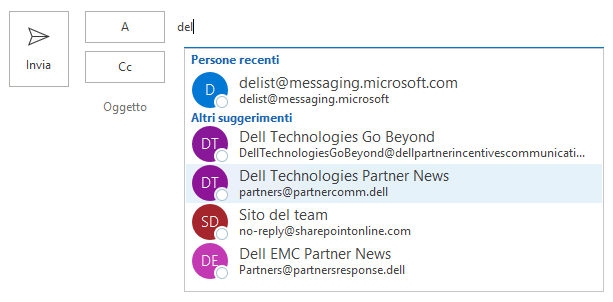
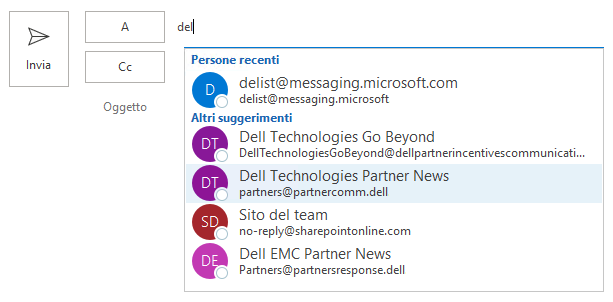
Rigenerare la lista di autocompletamento di Outlook

autocompletamento Avete perso la lista di autocompletamento di Outlook?
Ricreatela!

Capita di cambiare computer e di non ritrovarsi più la lista di completamento automatico degli indirizzi di Outlook, quindi quando si inizia a digitare un indirizzo non appare nulla se non i contatti presenti nella rubrica.

Continua a leggere Rigenerare la lista di autocompletamento di Outlook